Always make sure you've followed each step of the installation instructions before opening your new plugin in your DAW. You can access these from your account or at the bottom of the product page.
If you find your new AU plugin isn't validated in Logic, please follow these steps.
1. OpenLogic Pro X.
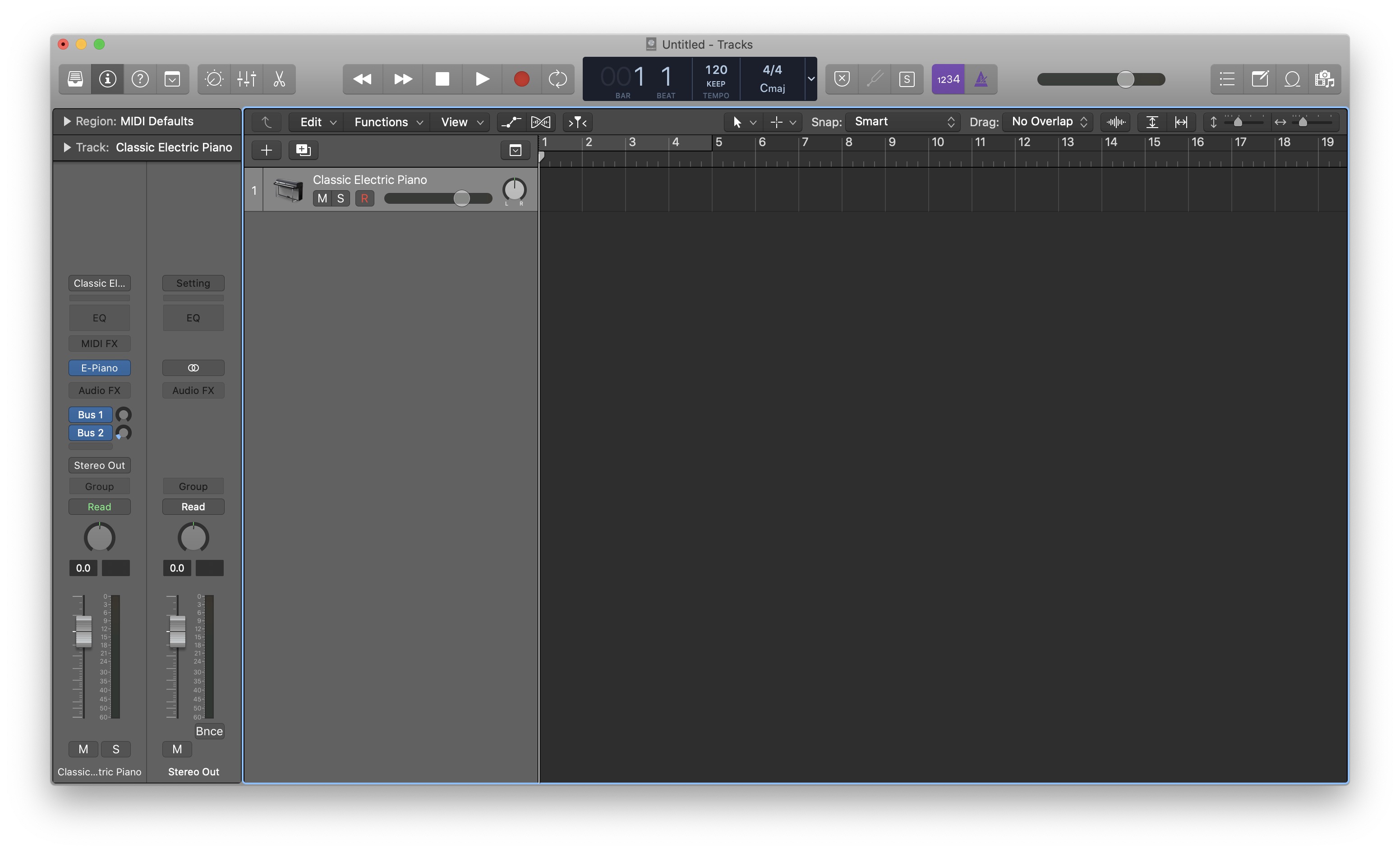
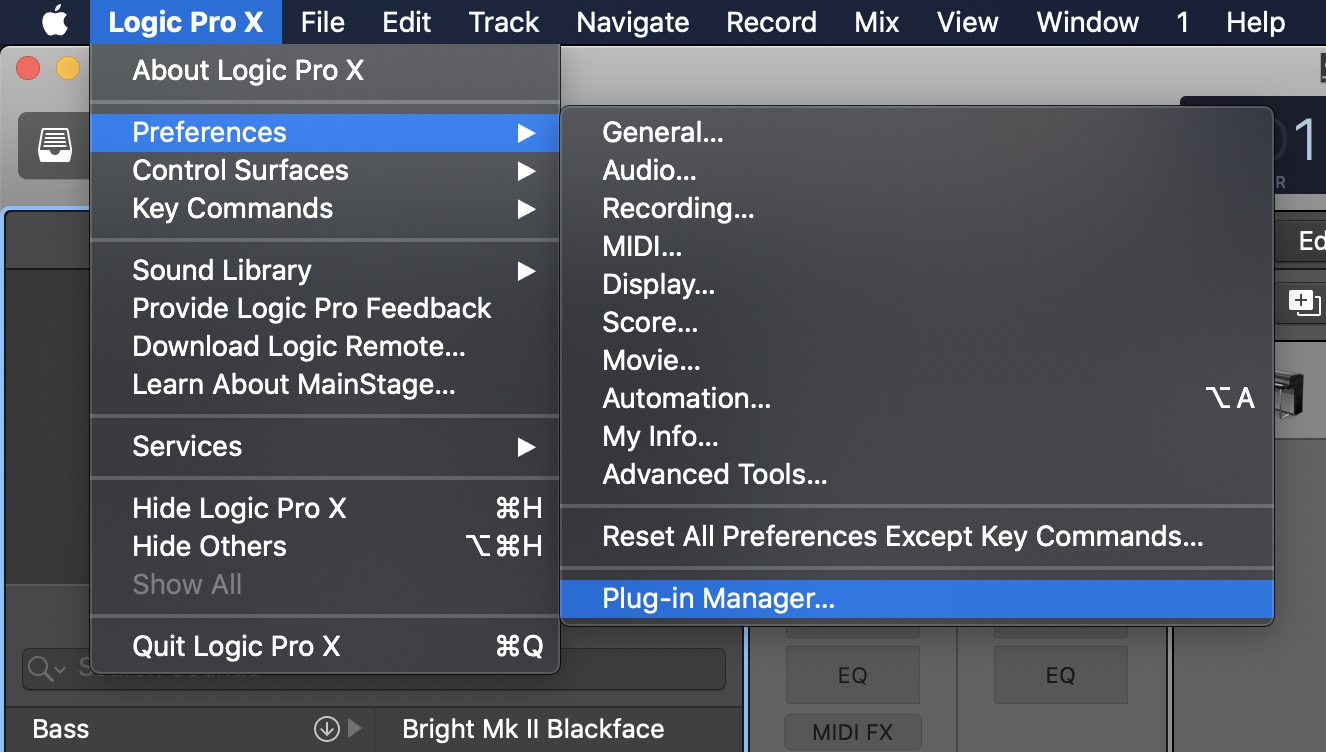
2. ClickLogic Pro Xon the menu bar > ChoosePreferences> ClickPlug-in Manager...
3. Select the plugin you wish to rescan (enter the name of the plugin or the manufacturer in the Search Plug-Ins bar) > clickReset & Rescan Selectionat the bottom of the Plug-In Manager. Your AU plugin should now be successfully validated and ready to use.
If your AU plugin isn't showing in the Logic Plug-in Manager, you may wish to clear your Audio Unit cache - this will force rescan all of your plugins (and may take a while). Please follow the steps below.
1. Open Finder.
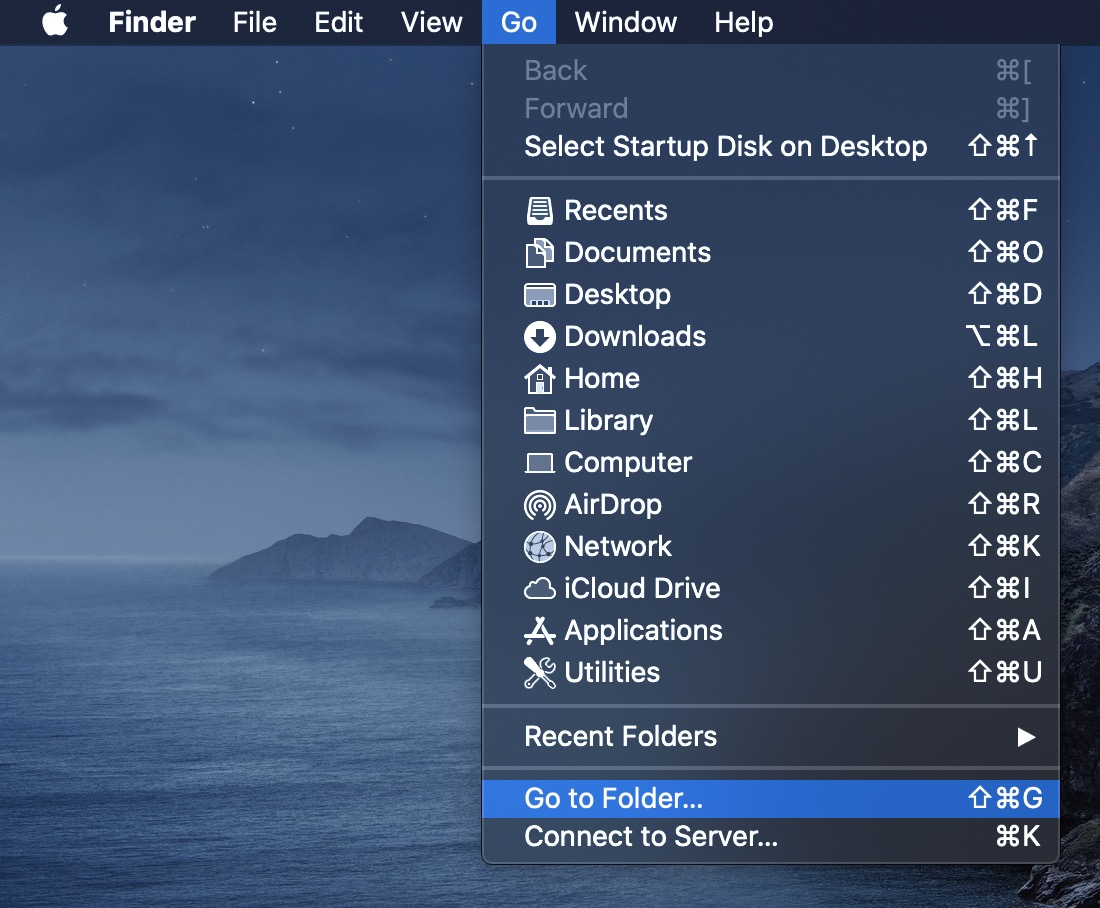
2. Click 'Go' on the menu bar at the top > click 'Go to Folder'.
3. Enter~/Library/Cachesin the "Go to the folder" field.
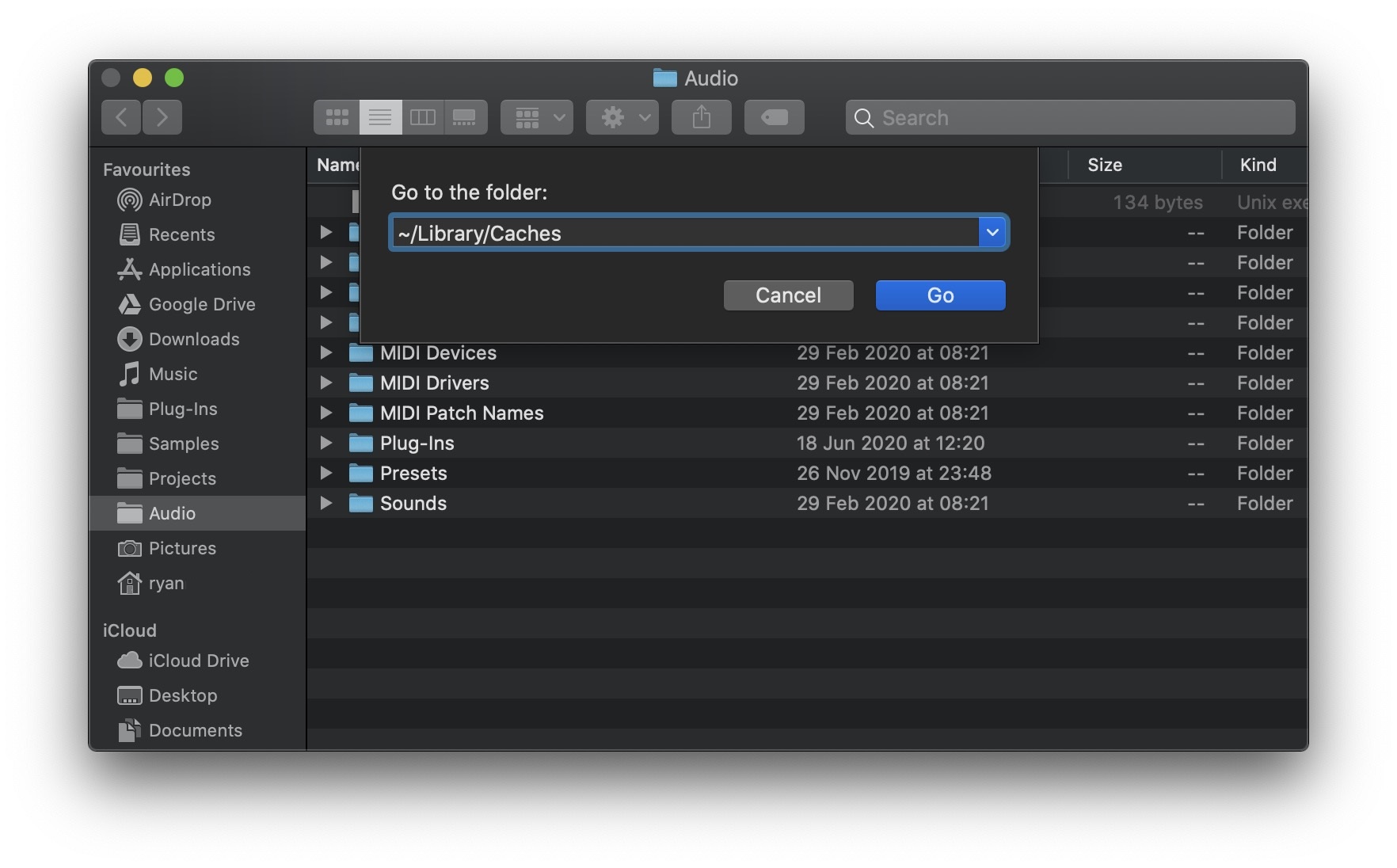
4. Remove the "com.apple.audiounits.cache" file and the~/Library/Caches/AudioUnitCachefolder.
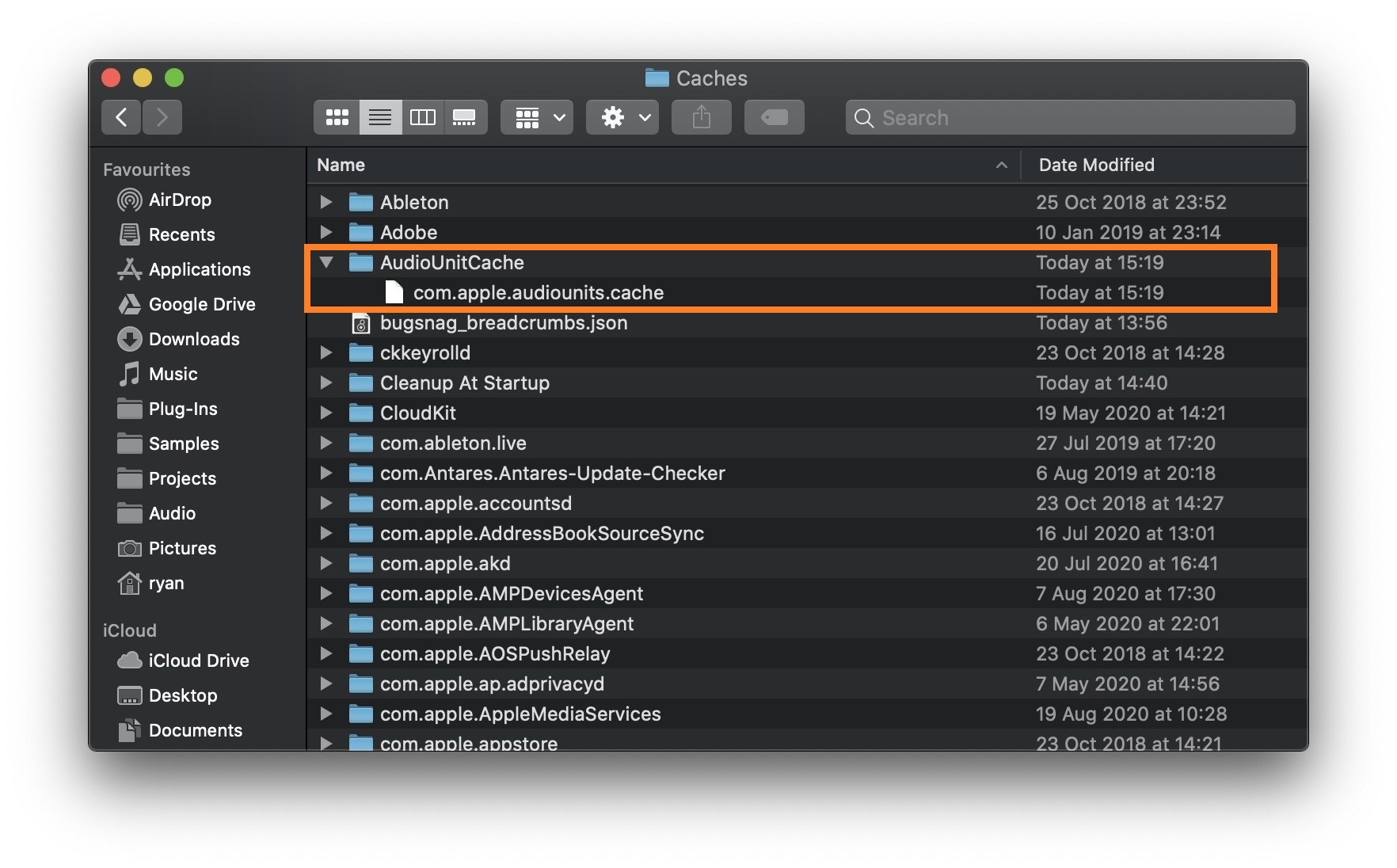
5. Reopen Logic Pro X. Please wait for your plugins to rescan (this may take a while as every plugin you have on your Mac will be rescanned).
Comments
0 comments
Article is closed for comments.